VRWARE
VRWARE Edu School VRWARE Edu StoryBuilder MetaWare Edu School VRWARE Edu Coding VRWARE Edu StoryCoding VRWARE ASSEMBLR EDU
Powered by Google Translate
  • Getting Started
    • How It Works
  • Creating Projects
    • Create from Scratch
    • Create With Templates
  • Managing Projects
    • Rename Your Project
    • Delete Your Project
  • Editor
    • Introduction to Editor
    • On-Screen Display Settings
    • Multi-Select Objects
    • Change Background Color
    • Insert 3D & 2D Objects
    • Insert Texts & Annotations
    • Insert Audio
    • Transform Tools on Editor
      • How to Move Objects
      • How to Rotate Objects
      • How to Scale Objects
      • How to Duplicate Objects
      • How to Mirror Objects
      • How to Copy Objects to Another Scene
      • How to Delete Objects
      • How to Edit Objects on the Transform Panel
      • How to Change Objects on the Transform Panel
    • Scene Feature
      • How to Add, Duplicate, and Remove Scenes
      • How to Set Scene Camera
    • Interactivity Feature
      • Animate (Move, Rotate, Scale, Animation)
      • Visibility (Hide & Show)
      • Jump Up (Switch Scene & Open URL)
      • Media ( Sound Effect)
  • Sharing & Viewing Projects
    • Share from Editor
    • Share from "Your Projects"
    • View Your Project
Editor Change Background Color
현재 페이지 PDF 전체 페이지 PDF

Change Background Color

How to Change Your Background Color

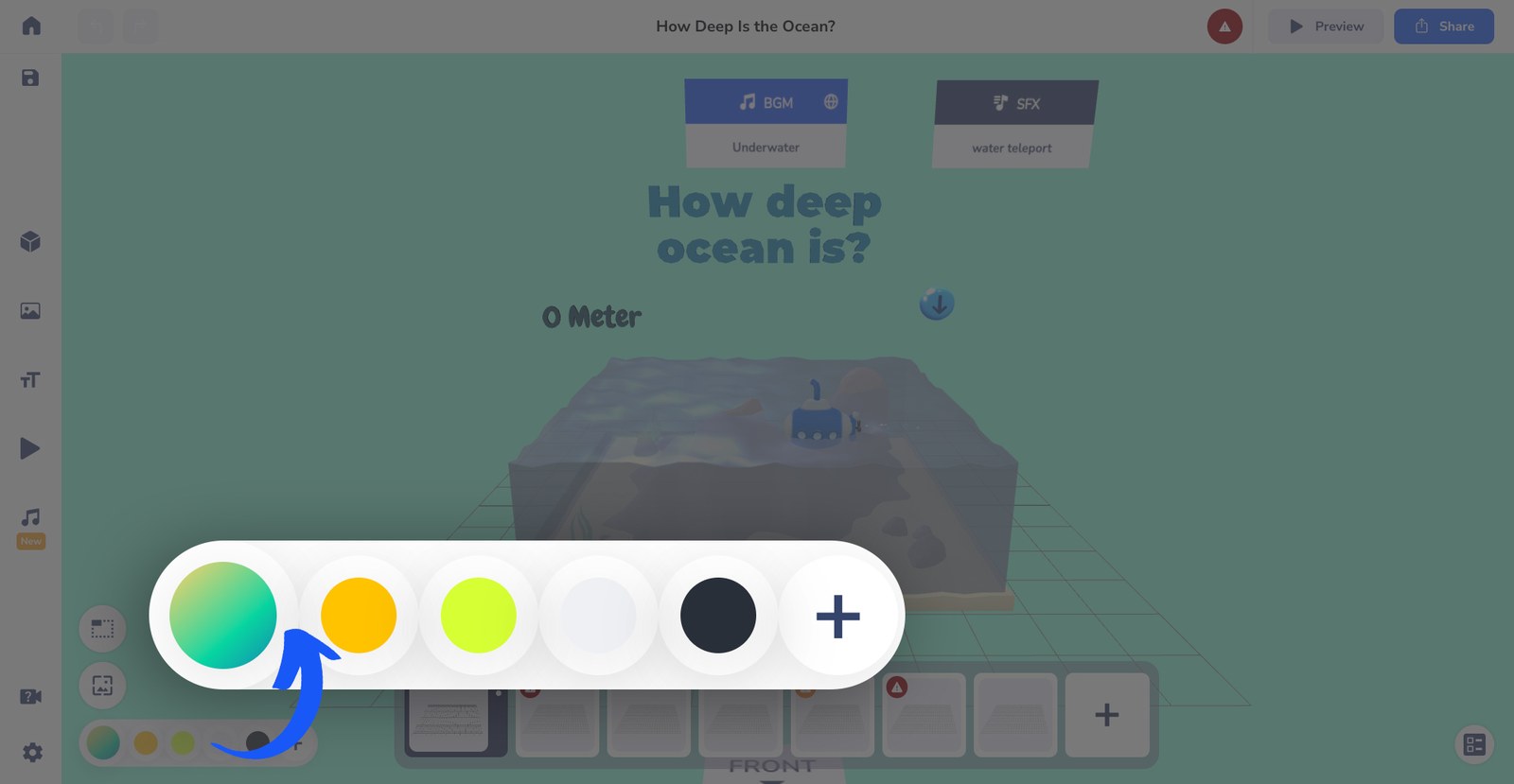
  1. First off, click on the icon on the bottom left of your editor.
  2. Pick the color that you want from the available options.
  3. If you want to have more color options, click the + button.
  1. Here, you can simply pick any color that you prefer!
이전 « Multi-Select Objects 다음 Insert 3D & 2D Objects »
ON THIS PAGE
  • How to Change Your Background Color